Welcome To Hackerman Text
Hackerman Text is free for personal, educational, hobby, and evaluation use. Commercial use requires a license.
Hackerman Text is currently in alpha. Please expect bugs, rough edges, and features that may change.
Please report bugs or other issues here: Issues.
Feature requests are welcome here: Feature requests.
Other useful links: Documentation, End User License Agreement, Privacy Policy.
Code completion
Code completion is currently being reworked. The built-in auto complete and code completion flow will likely be replaced by single custom Ollama-powered completion command. Hosted completion support for Mistral and Inception may be removed unless latency can be kept reliably below a few hundred milliseconds.
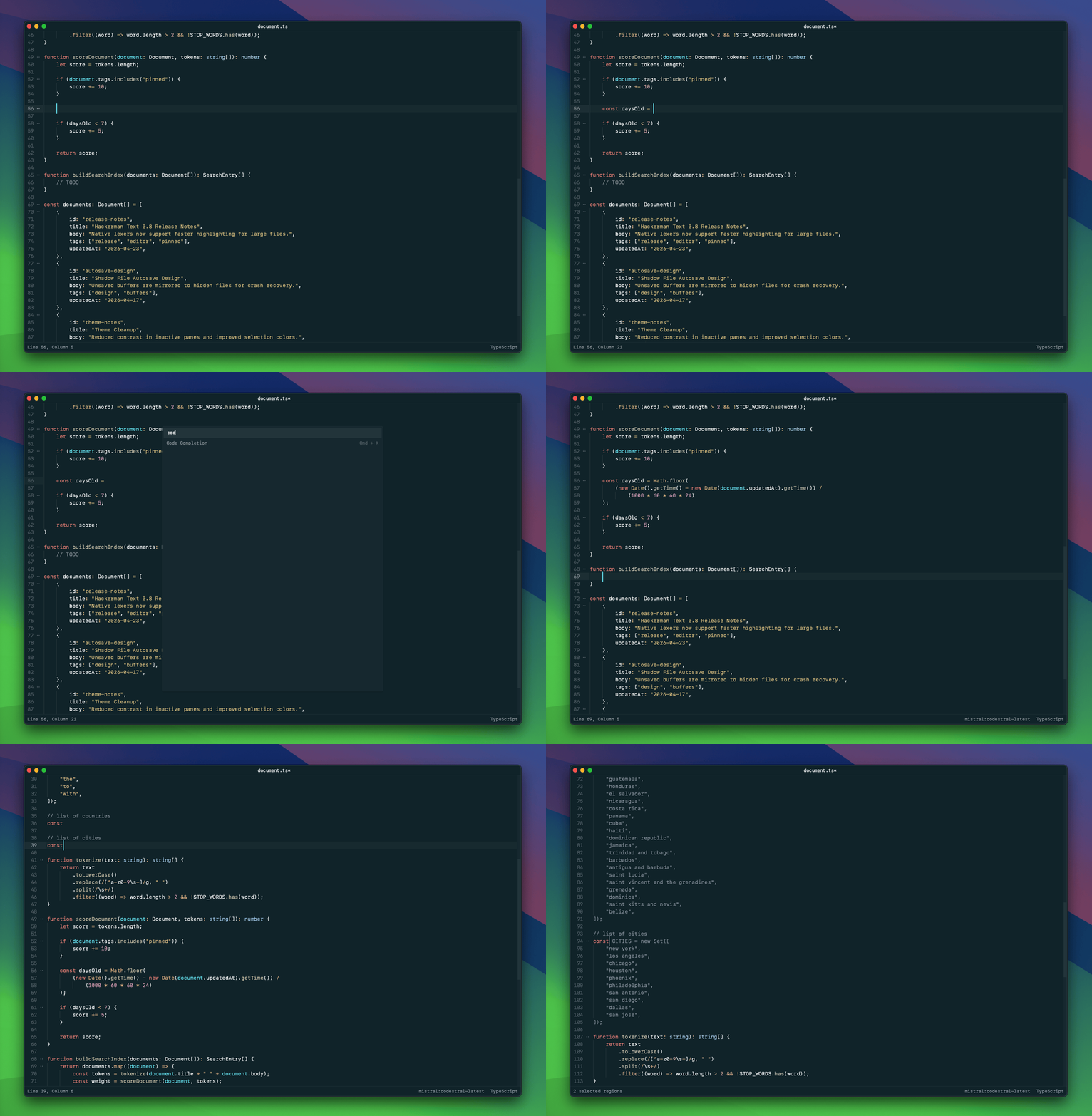
Hackerman Text supports code completion through local and hosted models. For the best current experience, Ollama is recommended. Hosted providers such as Mistral and Inception can also be configured, but these paths are more likely to change during the alpha.
Ollama
Install Ollama and download a FIM-enabled model. A good starting point is qwen2.5-coder.
Then open your .hackerman config file. You can do this
by right-clicking in the editor, or by pressing
Cmd + Shift + P and selecting Open Config
File.
Find the [models] section and configure code completion
like this:
[models]

-- ollama
code_completion                     ollama, qwen2.5-coder:1.5b
After saving the config, trigger completion with Code Completion.
Mistral
To use Mistral, create a Mistral account and generate an API key. See the Mistral quickstart.
Open your .hackerman config file, find the
[models] section, and replace API_KEY with
your Mistral API key:
[models]

-- cloud providers
code_completion                     mistral, codestral-latest, API_KEY
After saving the config, trigger completion with Code Completion.
Inception
To use Inception, create an Inception account and generate an API key. See the Inception authentication guide.
Open your .hackerman config file, find the
[models] section, and replace API_KEY with
your Inception API key:
[models]

-- cloud providers
code_completion                     inception, mercury-coder, API_KEY
After saving the config, trigger completion with Code Completion.
Inline shell commands
Shell and Python eval
Hackerman Text can run shell commands and evaluate small expressions
directly inside ordinary text files. By default, inline commands are
enabled only in .txt, .md, and
.org files.
You can change the enabled file types in your .hackerman
config file:
inline_command_in_files             txt, md, org,
inline_shell_start_symbol           %
Move the cursor to a command line and trigger Inline
Commands, or press Cmd + Shift + Return.
% echo 'hello'
hello
42**42
150130937545296572356771972164254457814047970568738777235893533016064
Org-mode code execution
In Org files, Hackerman Text can execute code blocks written in Python, Lua, JavaScript, and Hy.
(defn main [name]
    (print "Welcome to Hy in org-mode," name "!")
)
(main name)
Move the cursor inside the code block and trigger Inline
Commands, or press Cmd + Shift + Return. Results are
inserted back into the document:
#+RESULTS: True
: Welcome to Hy in org-mode, Michael !
Custom editor commands
Custom editor commands let you extend Hackerman Text with your own
Python scripts. This feature is disabled by default and must be enabled
in your .hackerman config file:
scripts_enabled                     true
allow_unsafe_scripts                false -- allow imports
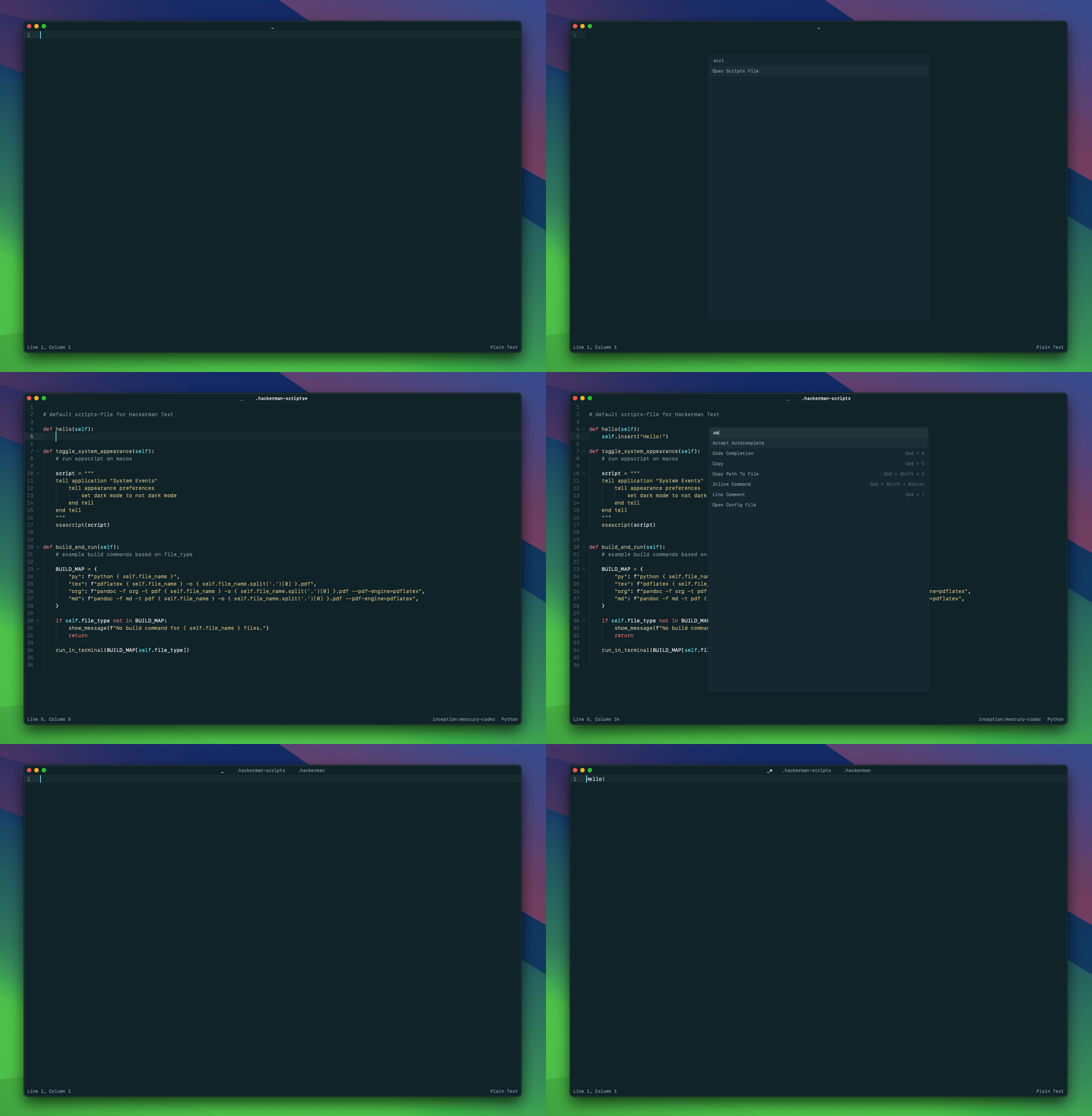
Scripts are loaded from:
~/.../Application Support/Hackerman Text/.hackerman-scripts
You can also point Hackerman Text to your own script file. This requires a restart:
path_to_scripts_file path/to/plugins.py -- path to scripts file, requires restart
Tips and tricks
Right-click in the editor, or press Cmd + Shift + P, to
open the command palette. This shows the available commands and their
active key bindings.
Double-click a line number to fold that line. You can also use
Cmd + L.
Double-click a word to select it. To add another matching word to the
selection, hold Cmd and double-click the next word.
Select some text, then use Select Next Match or
Cmd + E to select the next exact match. Use Unselect
Next Match or Cmd + Shift + E to remove the last added
match.
To select every match in a file, open Find In File with
Cmd + F, search for the text, press Esc, then
trigger Select Matches.
Selecting a brace highlights the matching opening or closing brace.
By default, Hackerman Text searches from /Desktop. You
can set a new default folder in your .hackerman config
file, or drop a folder onto the editor to make that folder the File
Explorer root. File navigation and text search will then be limited to
that folder.